How to copy text from your screen or a screenshot on a Mac
How to copy text from a screenshot or any region of your Mac screen, including tables: Live Text, built-in capture, and on-device OCR.
Short answer
macOS can read text from images without extra software. Open the image in Preview, Quick Look or Photos and select the text with Live Text, which runs on your Mac. Region OCR can handle images that Live Text cannot select and layouts that need to be preserved.
Sometimes the text you need is not selectable. It is in a screenshot, video frame, PDF rendered as an image or design mockup. macOS has more OCR built in than most people realise, and for a photo of a page it is usually all you need. It runs out of road when an app has not adopted Live Text, when an image is hard to read or when the layout matters.
The built-in way: Live Text
Live Text recognises text inside images and lets you select it as though it were a document. It works in Preview, Quick Look, Photos, Safari and the Finder's preview pane, it runs entirely on your Mac, and it needs nothing turned on.
- Get the image somewhere Live Text worksTake a screenshot with ⇧⌘4 (region) or ⇧⌘3 (whole screen), then open the file from your desktop, or select it in Finder and press Space for Quick Look.
- Select the textMove the pointer over it. The cursor changes to an I-beam where text has been recognised. Drag across it, or use the Live Text button in the corner of the image to select everything at once.
- Copy it⌘C. It behaves like any other selection. ⌘A selects all recognised text, and you can look up or translate the selection from the right-click menu.
If you are capturing something purely to read the text out of it, capture straight to the clipboard instead of the desktop: ⌃⇧⌘4 takes a region without leaving a file behind.
Where Live Text stops
- It is not everywhere. Live Text is available in apps that adopt it. An image inside a chat client, a design tool, a virtual machine window or a document viewer that has not adopted it will not offer a selection, and the only route is to screenshot it and open that.
- Hard images fail. Small type, low-contrast interfaces, dark-mode terminals, condensed fonts and video stills recognise badly or not at all.
- Layout is discarded. This is the one that catches people out. Recognition reads line by line and returns a stream of lines; leading whitespace is not part of that. Copy a screenshot of indented code, a YAML file or a nested bullet list and everything arrives flush left, structure gone.
Region OCR, and keeping the layout
The alternative is to skip the file entirely: select a region of the screen and get text back directly, whatever app that region belongs to. In Stowpad that is ⌘⌃⇧T. Press it, drag over the area, and the recognised text lands in your clipboard history ready to paste.
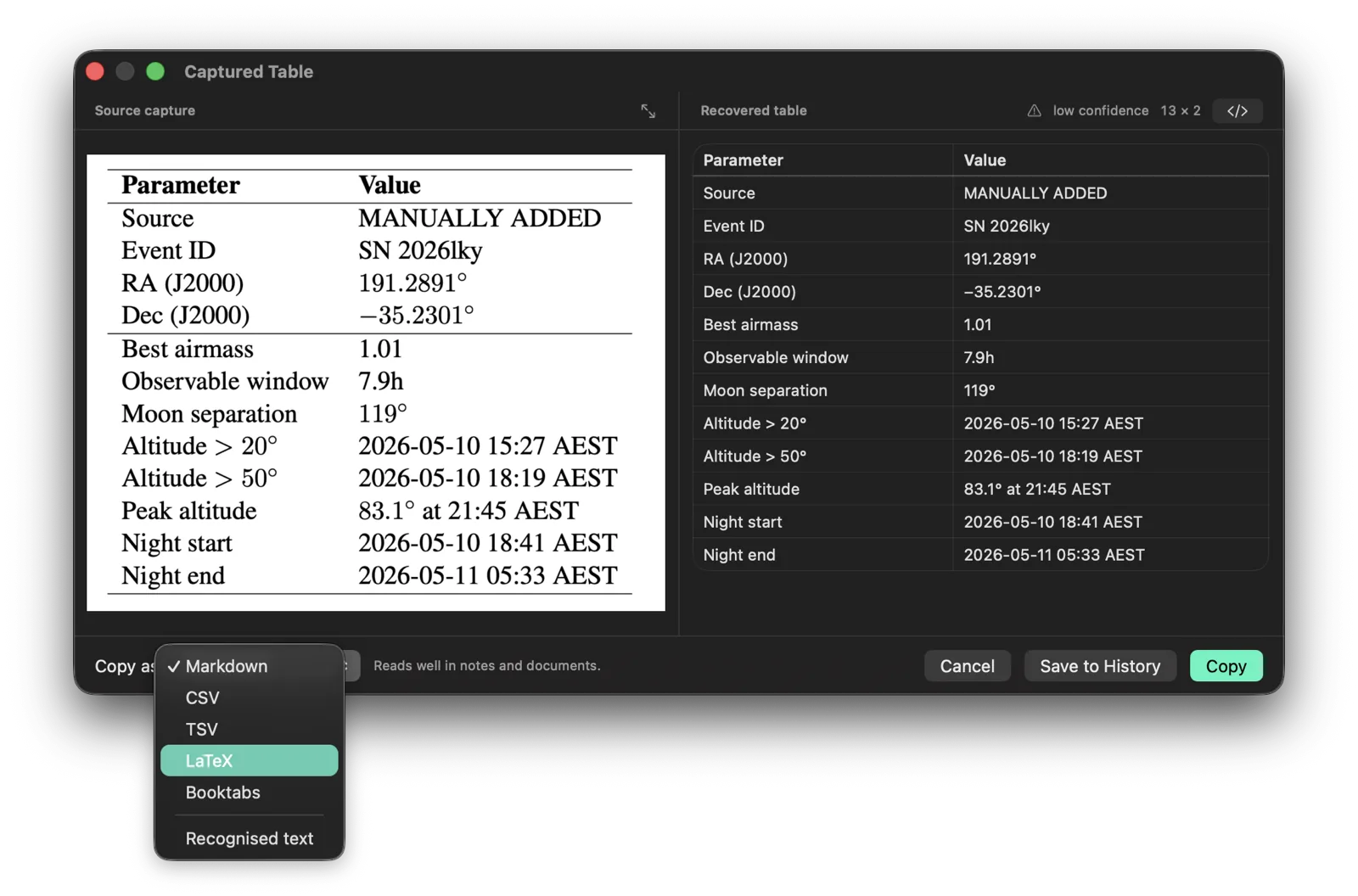
The part that matters for code is what happens to indentation. Stowpad measures where each recognised line actually starts across the captured region and reconstructs the leading whitespace from those positions, so a captured function keeps its nesting and a captured outline keeps its levels. Recognition uses Apple's Vision framework on your Mac; the captured image is written inside Stowpad's own container, decoded, and deleted immediately.
If the region turns out to be a table, that is a different problem with a different answer. See copying a table out of a PDF.
Does any of this upload the image?
Both routes above run locally, and text recognition works with the network off. Online OCR sites require an upload, and screenshots often include other material that was on screen at the time. Local processing keeps payslips, medical results and confidential work on your Mac.
Everything Stowpad does with a capture is set out in the privacy policy, section 04.
Sources
Common questions
Can macOS extract text from an image without an app?
Yes. Live Text is built into macOS. Open an image in Preview, Quick Look, Photos or Safari, then drag over the text as though it were a document. macOS recognises it on device and lets you copy it.
Why can I not select the text in some images?
Live Text only runs in apps that adopt it, and it needs reasonably legible text. Screenshots of small type, low-contrast interfaces, dark-mode terminals and video frames often fail. To capture text from another running app, take a screenshot first.
Does Mac OCR work offline?
Yes. Both Live Text and the Vision framework that third-party apps use run locally on your Mac. No image is uploaded, and text recognition works with no network connection at all.
How do I keep code indentation when copying text from a screenshot?
Standard OCR reads line by line and flattens leading whitespace, which destroys code and nested lists. Stowpad reconstructs indentation from the horizontal position of each line before it hands you the text, so code and outlines keep their structure.
How do I take a screenshot straight to the clipboard on a Mac?
Add Control to the usual screenshot shortcut: ⌃⇧⌘4 captures a region to the clipboard instead of a file, and ⌃⇧⌘3 does the same for the whole screen.
Stowpad for Mac
An encrypted clipboard history that stays on your Mac, with on-device OCR, table capture and a colour picker. Free for the newest 30 clips; Pro adds unlimited history and the local tools above.
Get on the Mac App Store