How to see clipboard history on a Mac
macOS Tahoe has Clipboard History in Spotlight. Learn how to open it, find a recent copy and decide when a dedicated, private manager is useful.
Short answer
On macOS Tahoe or later, open Spotlight with ⌘Space and press ⌘4 to browse recent clipboard items. Earlier macOS versions have only the current clipboard item. A dedicated manager is useful when you need a longer, searchable history, richer clip types or local privacy controls.
macOS Tahoe introduced Clipboard History in Spotlight. It is the right first stop when you need something you copied recently. If your Mac runs an earlier version of macOS, Finder can show only the item that is currently on the clipboard.
Open Clipboard History in macOS Tahoe
- Open SpotlightPress ⌘Space, or click the Spotlight icon in the menu bar.
- Switch to ClipboardPress ⌘4, or click the Clipboard button at the right of the search field.
- Choose a recent copyBrowse or search the recent text, images, links and files you copied. Select an item, then press Return to use it again.
Spotlight's Clipboard History is available in macOS Tahoe and later. It is a recent-history feature, which is exactly what many people need. The standard pasteboard still holds the current item for ordinary ⌘C and ⌘Vcopying and pasting.
See the current clipboard item on any Mac
In Finder, choose Edit › Show Clipboard to see the current item. In Terminal, pbpaste prints its text contents. These two options do not open the recent history, but they are useful on every compatible macOS version.
When the built-in history is enough
Use Spotlight when you want to recover a recent copy without installing another app. It handles ordinary text, images, links and files directly inside macOS.
When a dedicated clipboard manager helps
A dedicated manager makes sense when you need more than a recent list: a longer encrypted history, a shortcut that pastes back into the app you are using, filters by source app or type, pinned clips, structured previews, or controls for sensitive content. Those differences are worth deciding on before you install one.
- Where the history is stored.On your Mac, in your Mac's Keychain-protected storage, in the developer's cloud, or in your iCloud. This is the security question, because the history contains everything you have copied.
- How you get a clip back. Some managers copy the clip and leave you to paste it. The better ones paste it directly into the app you were already in, so the round trip is one shortcut and one Return.
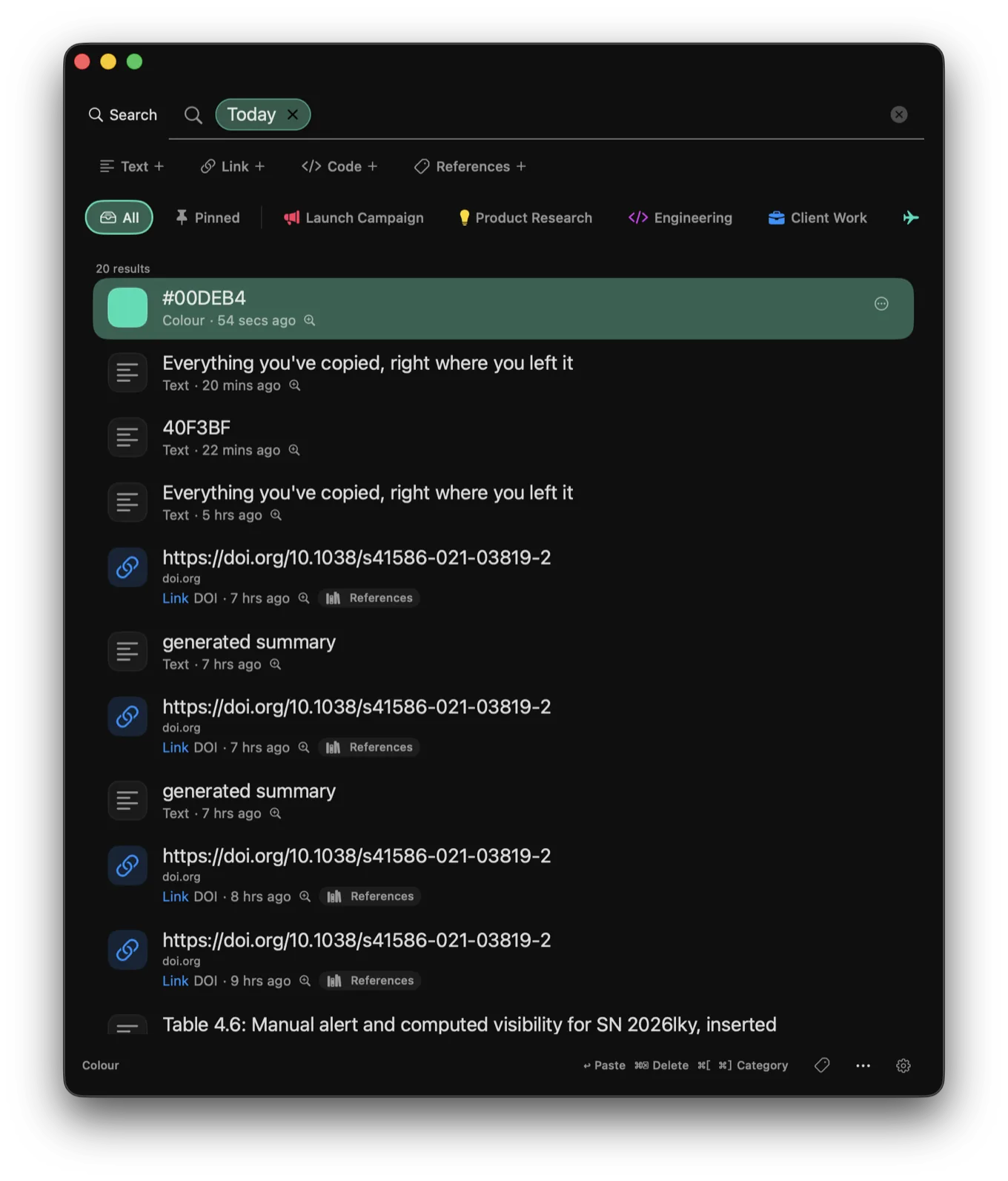
- Whether it understands what it stored. A history of undated text strings is much harder to search than one that knows this clip was code from Xcode on Tuesday and that one was a hex colour.
- What happens to passwords. Password managers flag copied credentials with a pasteboard type that asks clipboard managers not to record them. Honouring that flag is voluntary. Check that yours does.
How Stowpad differs
Stowpad records each clip as it is copied and keeps the history encrypted on the Mac that made it, with the key in your login Keychain. Nothing is uploaded, there is no account and there is no sync. Press ⌘⌃⇧V in whatever app you are typing in, pick a clip and press Return. Stowpad inserts it at the cursor without making you leave the app.
Because it also records what each clip is, the history stays searchable as it grows: type:code from:Safari narrows to code copied out of Safari, label:Work todayto today's work clips. Apps you mark as protected have their clips redacted and gated behind Touch ID. There is more detail in is your Mac clipboard private, and the full privacy policy says exactly what does and does not leave the machine.
Sources
Common questions
Does macOS keep a clipboard history?
Yes, on macOS Tahoe or later. Clipboard History lives in Spotlight and lets you browse recent text, images, links and files that you copied. Earlier versions of macOS show only the current clipboard item.
Where can I see what is currently on my Mac's clipboard?
Open Finder, then choose Edit › Show Clipboard from the menu bar. A window appears showing the current clipboard contents. In Terminal, running pbpaste prints the same thing as text.
Can I recover something I copied over on a Mac?
On macOS Tahoe or later, open Spotlight with ⌘Space, then press ⌘4 to look through recent copies. On older versions of macOS, an overwritten item cannot be recovered from the built-in clipboard.
What is the shortcut for Clipboard History on Mac?
Open Spotlight with ⌘Space, then press ⌘4 to switch to Clipboard History. You can also click the Clipboard button at the right of the Spotlight search field.
Is a clipboard manager safe on a Mac?
It depends entirely on where the history is stored. A clipboard manager necessarily sees everything you copy, including passwords and personal information. Managers that sync history to a server put that data somewhere you cannot audit. Stowpad stores its history encrypted on your own Mac, with no account and no sync.
Stowpad for Mac
An encrypted clipboard history that stays on your Mac, with on-device OCR, table capture and a colour picker. Free for the newest 30 clips; Pro adds unlimited history and the local tools above.
Get on the Mac App Store